Updated on May 25, 2026
By Devashish Mamgain · Co-Founder and CEO, Kommunicate · Updated: May 2026
Summarize this blog post with: ChatGPT | Perplexity | Claude | Grok
Most businesses know they need a chatbot. What stops them is the assumption that building one requires a developer, a big budget, or months of setup. In 2026, that assumption is outdated. This guide walks you through exactly how to build and deploy an AI chatbot for your business, from your first login to going live, with no coding required.
Key Takeaways
- An AI chatbot can be live on your website the same day you sign up, with no developer needed.
- Kommunicate offers three training methods: website URLs, uploaded documents, or structured conversation flows.
- You can choose your LLM: OpenAI, Google Gemini, Anthropic Claude, or Kommunicate’s native model, all from one dashboard.
- Human handoff is built in. Your AI agent escalates to a live agent automatically, with full conversation history intact.
- One AI agent deploys across your website, WhatsApp, Instagram, mobile apps, and email from a single platform.
- Gartner projects conversational AI will reduce global contact center labor costs by $80 billion in 2026 alone.
What is an AI chatbot for business?
An AI chatbot for business is a software tool that uses artificial intelligence and natural language processing to automatically respond to customer queries across digital channels, without a human agent involved. Unlike older rule-based tools that followed rigid decision trees, modern AI chatbots use large language models (LLMs) to understand what a customer means, not just what they literally typed.
When a customer asks “Can I get my money back if the product does not fit?”, a well-trained AI chatbot recognizes this as a return policy question and answers from your knowledge base, even if those exact words never appear in your documentation.
Chatbot vs. AI Agent: What is the difference?
A chatbot answers questions. An AI agent takes action.
A chatbot trained on your FAQ can tell a customer their return window is 30 days. An AI agent can check that customer’s order status, initiate the return, send a confirmation email, and update your CRM, all within the same conversation.
For most businesses starting out, a knowledge-base AI agent delivers 80 to 85 percent of the value at a fraction of the complexity. Start there, then evolve into agentic workflows as your confidence in automation grows. Kommunicate’s Kompose AI Agent Builder is built specifically for this progression.
Enhance customer support with AI-driven email ticketing – automate workflow and resolve queries faster with Kommunicate!Why do AI chatbots matter for business in 2026?
Gartner predicts chatbots will become the primary customer service channel for roughly 25 percent of organizations by 2027, and that conversational AI will reduce contact center labor costs by $80 billion in 2026 (Gartner, 2022). The ROI case is no longer theoretical.
Here is what real deployments look like:
- Insurance company Conte.it automated 90 percent of incoming queries using Kommunicate, letting agents focus on complex cases only. (How Conte.it automated 90% of customer conversations)
- Telecom company TelOne reduced agent workload by 25 percent by deploying an AI agent across web and WhatsApp. (How TelOne reduced agent workload with Kommunicate)
- Mobility company Lula increased CSAT by 40 percent after deploying Kommunicate AI agents. (How Lula improved customer satisfaction with Kommunicate)
A human agent live chat interaction costs roughly $6.00 on average (IBM). An AI chatbot interaction costs approximately $0.50 to $0.70, equating to average time savings of over 4 minutes per query (Juniper Research).
What to decide before you build
Three decisions will shape your setup before you even open the dashboard.
What should your AI agent actually do? Start narrow. Handle one job well, then expand. Common starting points are answering product FAQs, handling order tracking, qualifying leads, or routing support tickets.
Where will it live? You do not need every channel on day one. Pick your primary channel first: website, WhatsApp, or mobile app.
Which training method fits your content? Choose based on where your knowledge already lives:
| Your situation | Best training method |
|---|---|
| You have a website with existing content | Train on website URLs |
| You have PDFs, help docs, or spreadsheets | Upload documents |
| You use Zendesk, Salesforce, or HelpCenter | Connect via the Knowledge Base tab |
| You need precise control over specific answers | Add Q&A pairs through Intents |
How to build an AI chatbot with Kommunicate
We have helped over 500 businesses go through this setup. Most teams are live within a few hours of signing up.
Step 1: Set up and train your AI agent
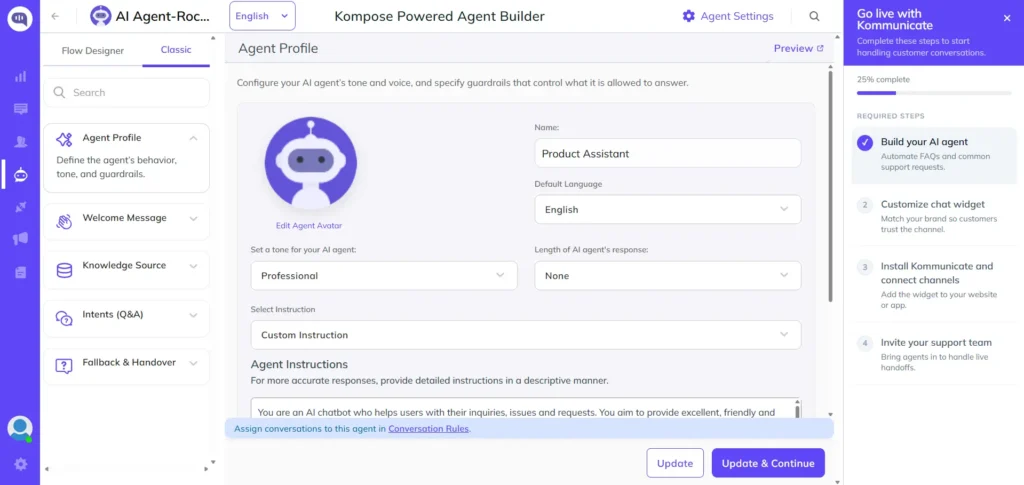
Sign up at dashboard.kommunicate.io/signup. The free trial runs 30 days with no credit card required.Once inside, go to Agent Integration in the left panel, click Kompose, then click Create AI Agent. Write custom instructions. Set the tone (friendly, professional, concise) and add guardrails such as “never discuss competitor pricing” or “always recommend contacting sales for enterprise queries.”Give it a name, choose a default language, and click Update and Continue.
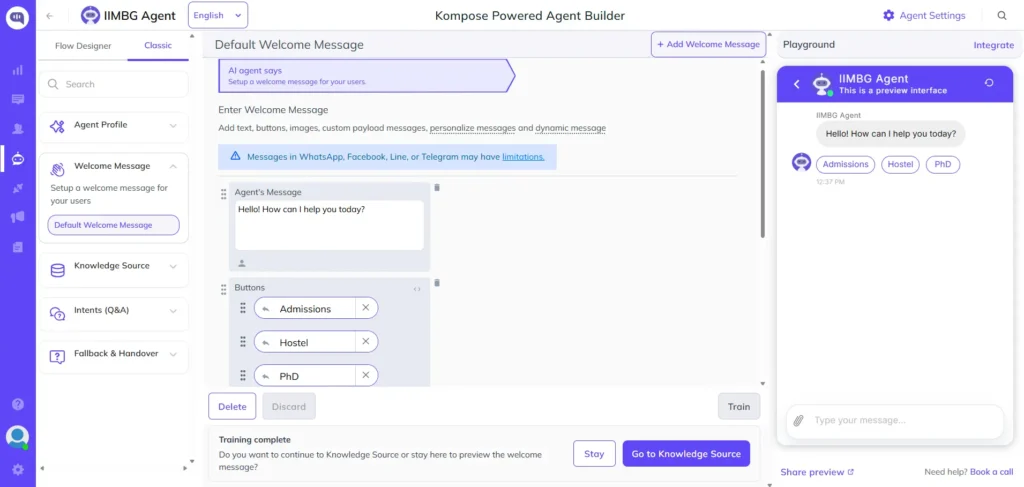
Before training, set your Welcome Message. In the left panel, click Welcome Message and open Default Welcome Message. This is the first thing a customer sees when they open the chat. Write something clear and helpful, for example: “Hello! How can I help you today?” You can also add buttons, images, or quick reply options here to guide customers toward common queries from the start. Once done, click Train to save it.
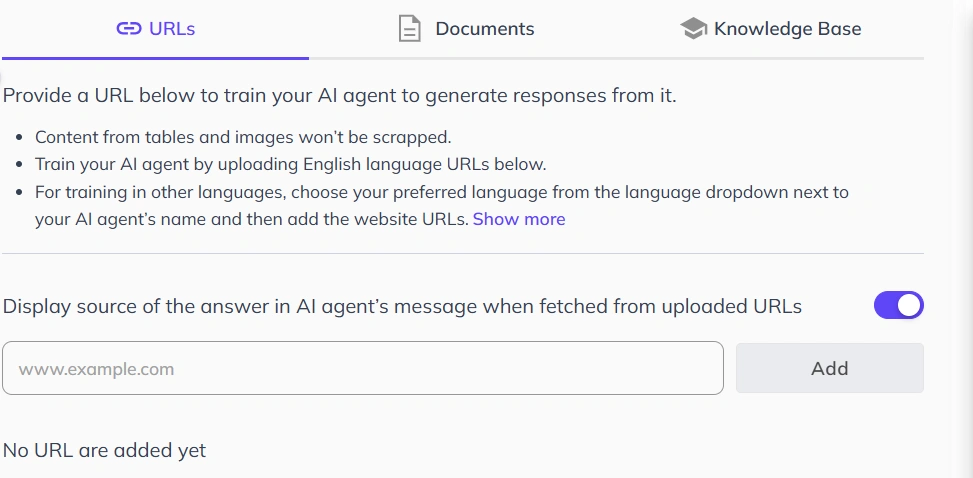
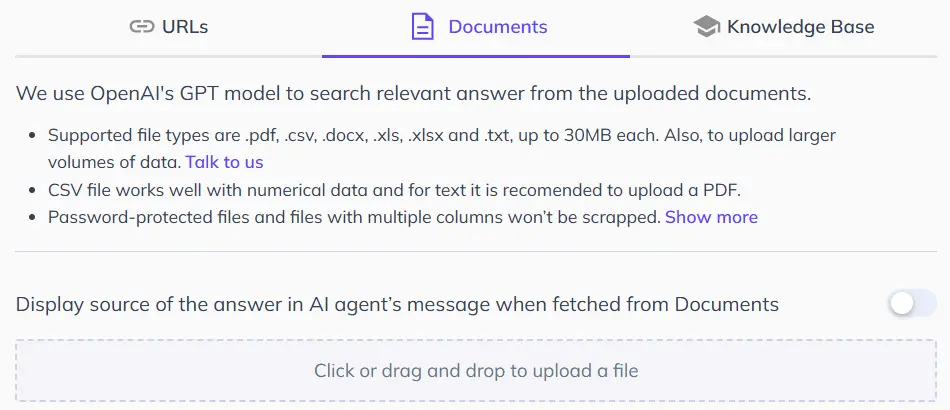
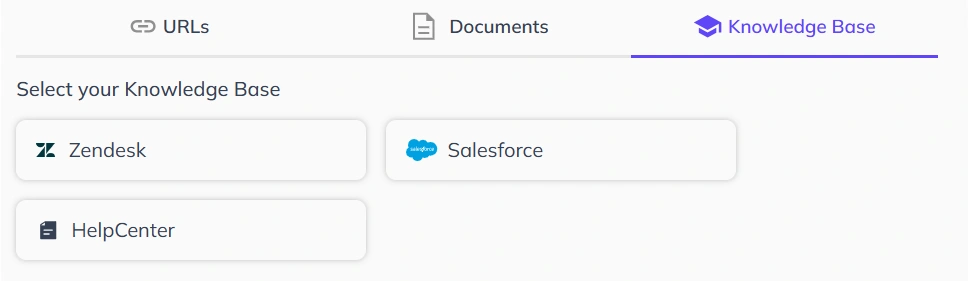
Now train your AI agent. The Knowledge Source section has three tabs, and there is a separate section for Q&A training.
1. Train the AI chatbot with website URLs
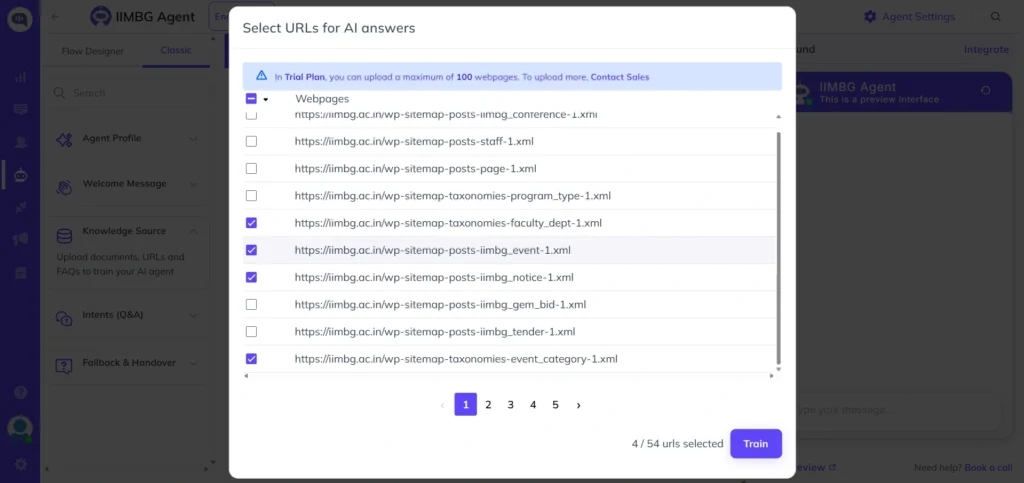
- It is the fastest option. Enter your domain, select the pages you want to train on (product pages, FAQs, help docs), and click Train. In our testing, AI agents trained on a 50-page site go active in under 30 seconds.
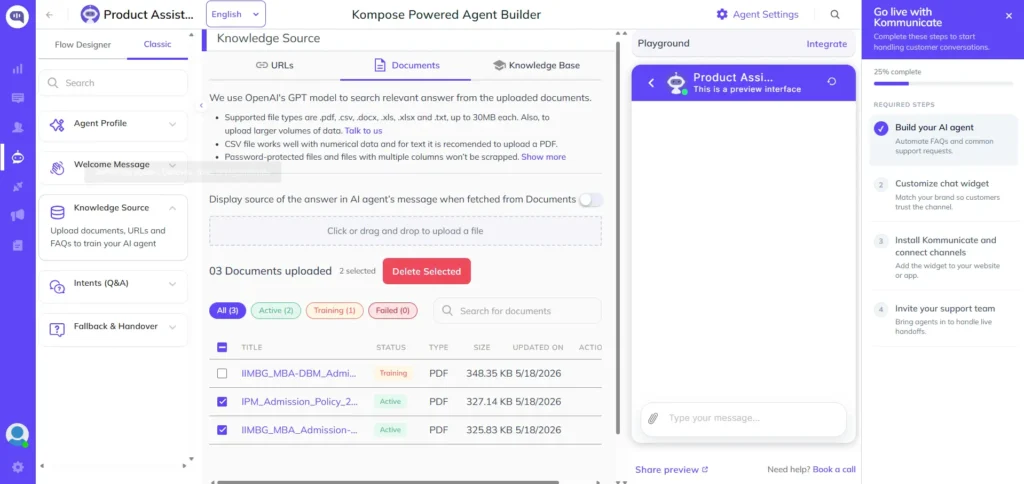
2. Train the AI chatbot with documents
Upload PDFs, DOCX, CSV, or TXT files. Training starts automatically and finishes in seconds. Well-structured, text-based documents work best.
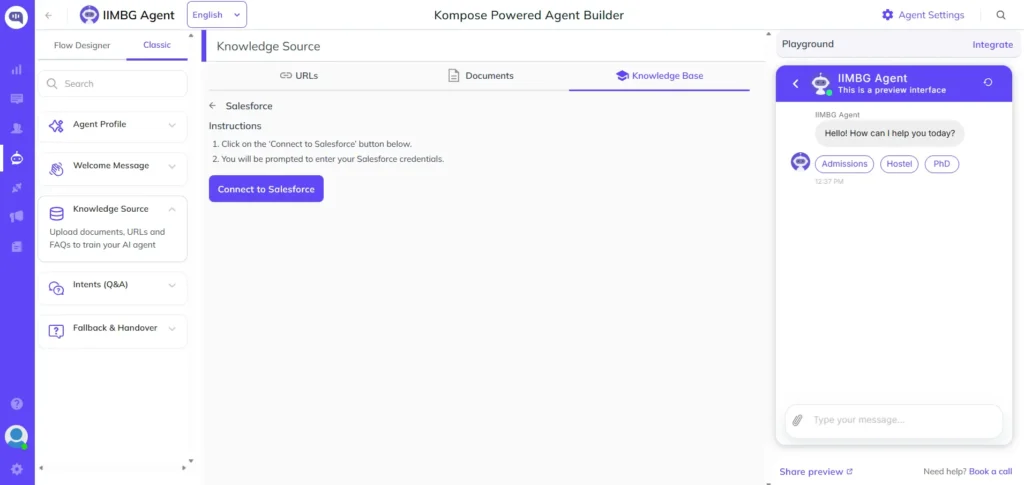
3. Train the AI chatbot with Knowledge Base
If your team already uses Zendesk, Salesforce, or Kommunicate’s own HelpCenter, connect it directly from this tab. Your existing knowledge base syncs automatically, no re-uploading needed.
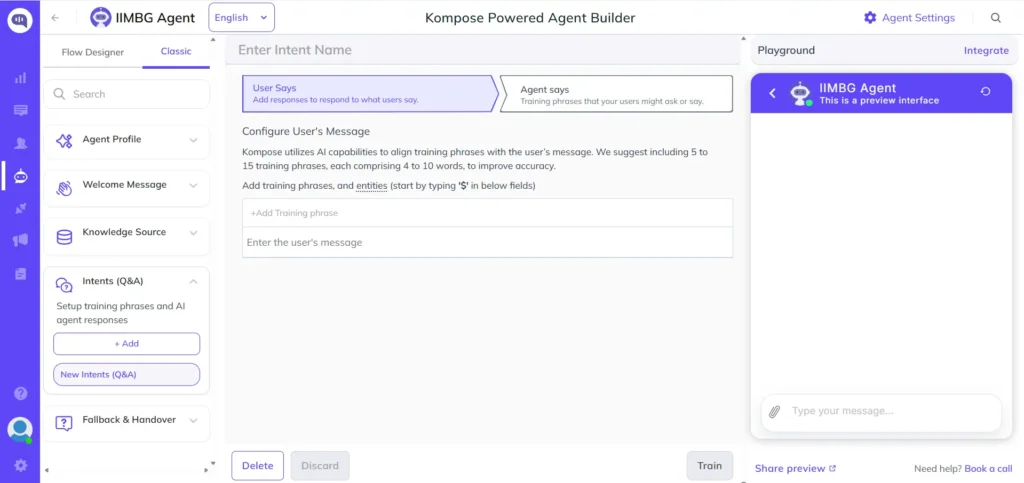
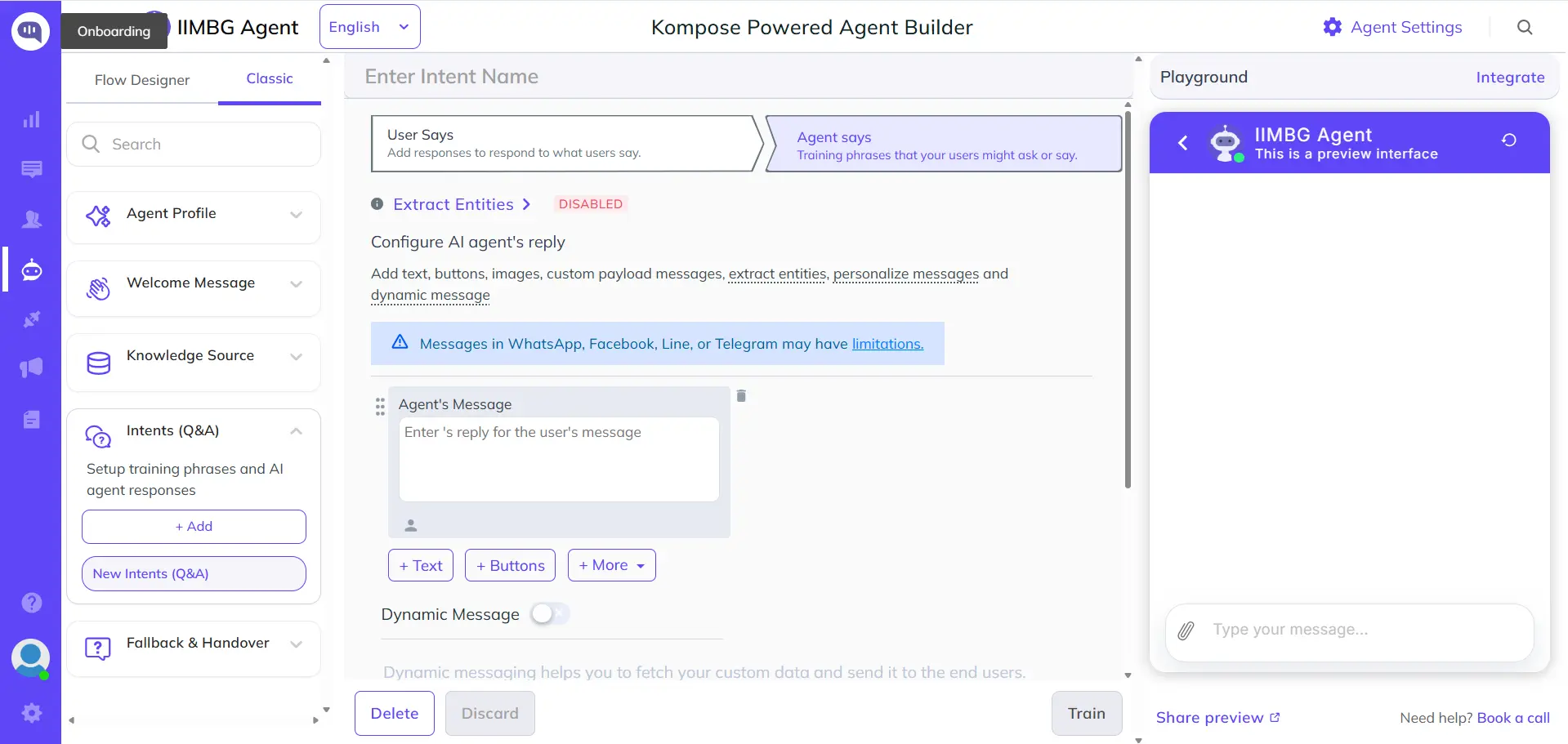
Training through Q&A (Intents)
Beyond the Knowledge Source, the Kompose Powered Agent Builder has a dedicated Intents (Q&A) section in the left panel. This is where you manually define specific training phrases and the exact responses you want your AI agent to give. Use this for high-priority queries where you want full control over the answer, such as pricing questions, return policies, or escalation triggers. Add 5 to 15 training phrases per intent (4 to 10 words each) for best accuracy.
Step 2: Configure settings and human handoff
Click the Settings icon in the top-right corner of the AI agent builder.
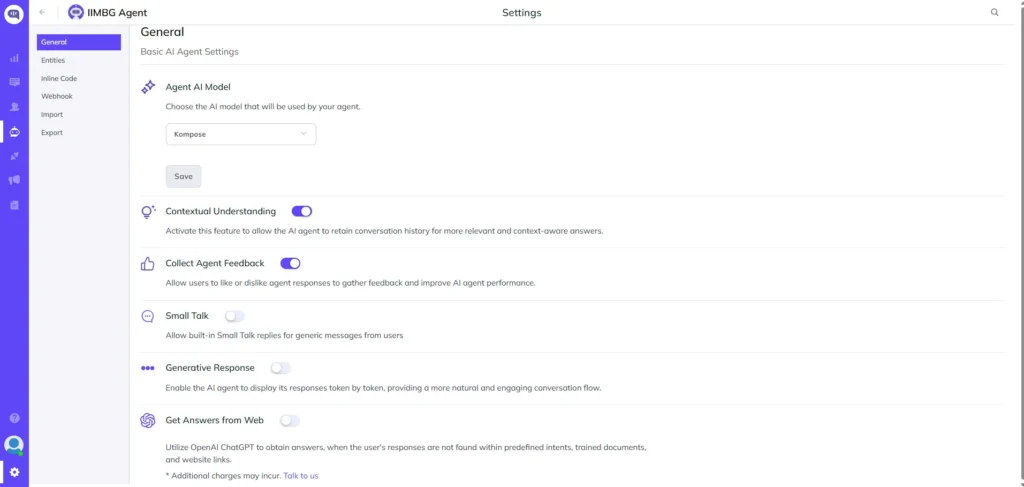
Choose your LLM. Pick from Kommunicate’s native Kompose model, OpenAI, Google Gemini, or Anthropic Claude. Test a couple with real customer questions before committing.
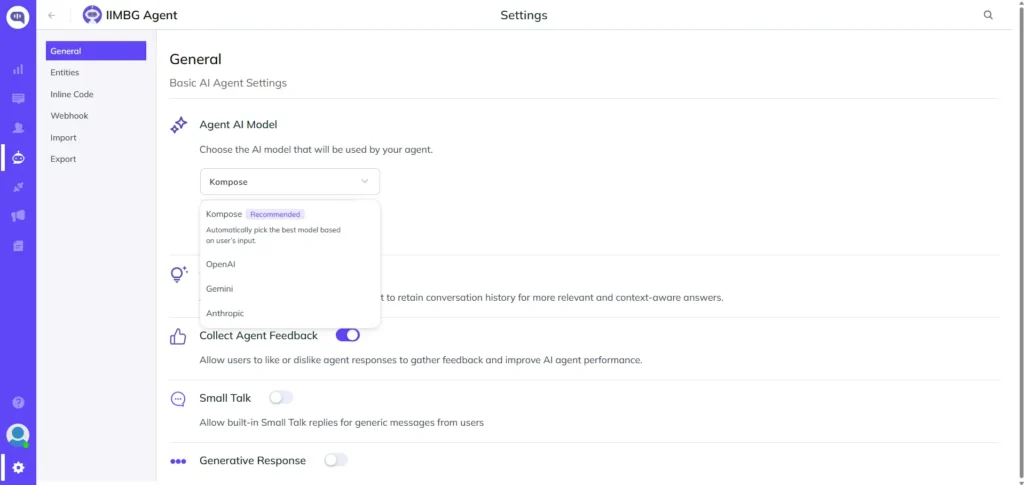
Enable contextual understanding so the AI agent remembers earlier messages within the same conversation.
Next, configure Fallback and Handover. This is the last section in the left panel of the Kompose Powered Agent Builder. Click Fallback and Handover to open the Default Fallback Intent. This is what fires when your AI agent cannot understand a query. Two key toggles to configure here:
Automatic AI Agent to Human Handover. Toggle this on and your AI agent will automatically transfer the conversation to a human agent whenever it cannot answer. Once transferred, the AI agent stops responding and the human agent takes over with the full chat history intact. The customer never has to repeat themselves.
Restrict Human Handover if all agents are Away or Offline. Toggle this on and your AI agent will continue handling the conversation on its own when no human agents are available, rather than leaving the customer waiting with no response.You can also write a custom fallback message in the Agent’s Message field, for example: “I am not sure about that. Let me connect you with someone who can help.” This message appears to the customer before the handover happens.
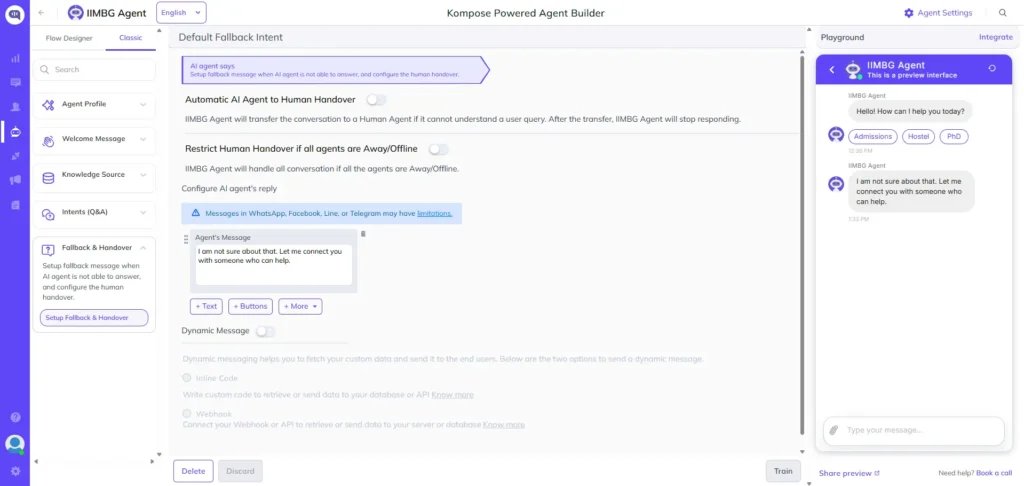
Before going live, click Train. Run 15 to 20 questions, including edge cases, to catch gaps before real customers do.
Step 3: Deploy your AI agent
Go to Dashboard > Settings > Install > Web. Copy the JavaScript snippet shown there and paste it just above the closing </body> tag on every page where you want the chat widget to appear. The full install script with all parameters is available at the Kommunicate web installation docs.
For WordPress, Webflow, Wix, Shopify, Squarespace, Weebly, GoDaddy, or Joomla, step-by-step CMS guides are at docs.kommunicate.io/docs/cms-installation.
Then go to Settings > Conversation Rules and toggle on “Assign new conversations to AI agent.” Select your AI agent from the dropdown. It is now live.
That’s it, Your chatbot is ready to get to work.
Deploying on WhatsApp and other channels
The same AI agent deploys across every channel from one dashboard, with no retraining needed.
WhatsApp connects via the official WhatsApp Cloud API, 360Dialog, or Twilio. Full setup guide: Kommunicate WhatsApp AI agent.
Mobile apps are covered through native SDKs for iOS, Android, Flutter, React Native, and Ionic.
Instagram and Telegram connect through the Integrations section in a few clicks.
Email is handled through Kommunicate’s AI Email Ticketing, which triages, categorizes, and responds to support emails automatically.
How to improve your AI agent after launch
Use AI Insights. Ask plain-English questions about your conversation data, such as “What were the most common unanswered questions last week?” and use the answers to fill training gaps.
Retrain when your content changes. Updated pricing, policies, or products? Retrain on the updated URLs or documents. Changes reflect immediately.
Watch your handoff rate. Above 30 percent means training gaps, not a handoff problem.
Where AI chatbots are making an impact in 2026
Healthcare. AI agents handle appointment scheduling, medication reminders, and insurance pre-authorization queries, freeing clinical staff for patient care. See Kommunicate’s healthcare AI agent.
E-commerce. With 70.19 percent of online carts abandoned globally (Baymard Institute, 2025), an AI agent that answers shipping, returns, and sizing questions in real time directly recovers revenue. See Kommunicate’s e-commerce AI agent.
Banking. AI agents handle account queries, transaction lookups, and loan pre-qualification 24/7, with ISO 27001, SOC 2, GDPR, and HIPAA compliance built in. See Kommunicate’s banking AI agent.
Education. Oklahoma City Community College deployed Kommunicate to provide 24/7 student support integrated with their LMS and SIS, achieving a CSAT of 8.33 out of 10. See Kommunicate’s education AI agent.
Conclusion
Building an AI chatbot for your business in 2026 is a same-day project, not a multi-month initiative. Train your AI agent on your existing content, configure your LLM and guardrails, enable human handoff, and deploy. Start on your website, then expand to WhatsApp and other channels as results come in.
The businesses winning at customer support automation right now started with a working AI agent, watched what happened, and improved from there.
Start your free 30-day trial at Kommunicate
Frequently Asked Question
How long does it take to build an AI chatbot with Kommunicate?
Most businesses go live within the same day they sign up. URL training completes in under a minute.
Do I need a developer?
No. Training, settings, and deployment are all managed through a visual dashboard. Pasting the install snippet is the only technical step, and most non-developers handle it without help.
Which LLM models can I use?
Kommunicate supports OpenAI (GPT-4o), Google Gemini, Anthropic Claude, and its own Kompose model. Switch between them in Settings without rebuilding.
Can the AI agent respond in multiple languages?
Yes. Kommunicate supports over 100 languages. AI agents trained on English content automatically respond in the language the customer uses.
How much does it cost?
Kommunicate offers a 30-day free trial with no credit card required. See the pricing page for paid plan details.
What happens when the AI agent does not know the answer?
With human handoff configured, the conversation transfers to a live agent with the full chat history intact, triggered by low confidence, a specific keyword, or customer request.
Also Read
- How to Train Your Chatbot on Website Content and URLs
- How Lula Loop Improved CSAT by 40% Using Kommunicate AI Automation
- How Oklahoma City Community College Achieved an 8.33 CSAT with Kommunicate

Devashish Mamgain is the CEO & Co-Founder of Kommunicate, with 15+ years of experience in building exceptional AI and chat-based products. He believes the future is human and bot working together and complementing each other.

Aditi is an MBA candidate at IIM Bodhgaya, specializing in Marketing and Strategy. As a dedicated marketer, she brings practical experience in market research, data analytics, and B2B execution to her work. Her expertise in refining product positioning and driving go-to-market strategies consistently supports insight-driven business growth.
At Kommunicate, we are envisioning a world-beating customer support solution to empower the new era of customer support. We would love to have you on board to have a first-hand experience of Kommunicate. You can signup here and start delighting your customers right away.